




.png?width=250&name=OrderEase%20logo%2c%20Square%20(2).png)

On this page
- QuickBooks order entry automation captures customer orders from email and PDF, checks the details, and sends approved data into supported QuickBooks transactions.
- Match customers, items, quantities, units and prices before syncing. Missing information, possible duplicates and conflicting details need a review process.
- Confirm what your integration creates in QuickBooks and when. Start with real customer POs, including an order that should be held for review.
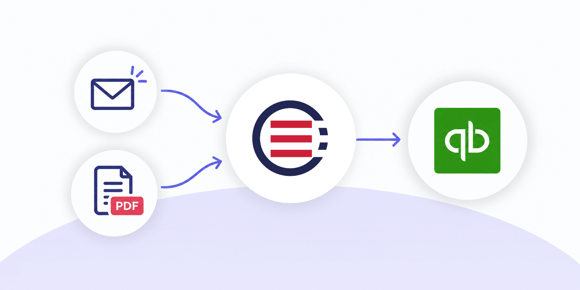
You can automate email and PDF orders into QuickBooks by connecting order capture, validation and accounting. The workflow reads incoming customer purchase orders, matches the details to your records, and sends approved data into the QuickBooks transaction your integration supports.
That is the purpose of QuickBooks order entry automation: reduce repeated typing while giving your team a reliable way to see which orders arrived, which need attention and which reached accounting.
For manufacturers, distributors and wholesalers, the difficult work often happens before anything appears in QuickBooks. An emailed PO may use the customer's product codes, list an outdated price or leave out information needed to fulfill the order. Those issues need to be resolved as part of the workflow.
This guide explains how to set it up, what to validate and how to decide whether a simple import or a broader order-management system fits your operation. It focuses on QuickBooks Online; confirm the corresponding workflow separately if you use Desktop or Enterprise.
Why Orders Still Get Missed When You Use QuickBooks
An order cannot appear in your accounting records until someone or something captures it. If customers place orders through email, phone calls and handwritten notes, your team still needs a reliable way to turn each request into a recorded transaction.
A PDF might stay in a salesperson's inbox. A handwritten quantity might be unreadable. Production might act on a request before accounting receives the details needed to invoice it.
Consider a fabricator with a small group of repeat customers. One missing dimension can stop a job, while one order that never reaches billing can leave completed work uninvoiced. Having fewer customers does not remove the need for a dependable intake process.
Start by identifying where orders can become invisible. Who checks each inbox? How is receipt recorded? How does accounting know which completed orders still need an invoice? Automation should address those handoffs as well as the typing.
What Happens to a Customer's Purchase Order in QuickBooks?
A customer's purchase order tells you what they want to buy from your business. It belongs on the sales side of your workflow. It is different from a purchase order you create to buy goods from your own supplier.
Before you import customer purchase orders into QuickBooks, define which sales transaction should result and when it should be created.
|
Document |
Purpose in the Workflow |
|---|---|
|
Customer purchase order |
Records the buyer's request, including their PO reference and requested items |
|
Estimate |
Presents proposed products or services and pricing before the sale is confirmed |
|
Sales order |
Records an order to be fulfilled before invoicing, where the QuickBooks setup supports it |
|
Invoice |
Records the amount you are billing the customer |
|
Your purchase order to a supplier |
Records what your business wants to purchase from a vendor |
Before automating order entry, decide when an incoming customer PO should become an accounting transaction. Some orders need review or fulfillment before they are ready to invoice. Your workflow should preserve that sequence.
With OrderEase’s QuickBooks Online integration, the evaluation should cover both sides of that handoff: how incoming orders are captured and validated, and what gets created in your QuickBooks Online account once they are approved.
Four Ways to Get Customer Orders into QuickBooks
The right approach depends on how much work happens between receiving an order and recording it accurately.
|
Approach |
When it may fit |
What to check |
|---|---|---|
|
Manual entry |
Infrequent, straightforward orders that someone can reliably review and enter |
Who records receipt, checks details and follows up on orders awaiting entry? |
|
Spreadsheet import |
Orders already exist in a consistent, structured format |
Which transaction types and fields can be imported, and who prepares and checks the file? |
|
Document parser and connector |
Repeat PDF layouts need extraction and a defined handoff to QuickBooks |
Does the solution also handle matching, validation, duplicates and failed syncs? |
|
Order management platform |
Multiple intake methods and customer rules need a shared review and processing workflow |
Does the operational benefit justify implementation, training and ongoing cost? |
When customer orders arrive as PDFs, the work starts before the QuickBooks import. The order details need to be extracted, matched to the correct customer and items, and checked for missing information or discrepancies.
When comparing tools, look beyond whether they can read the document. Ask what happens when a customer uses an unfamiliar SKU, orders in cases instead of individual units, or lists a price that differs from your agreement. Can the order be held for review, corrected and then passed to QuickBooks?
How Email and PDF Order Automation Works
To automate email orders into QuickBooks, define the intake point, map the incoming data, set validation rules and establish the accounting handoff. Test the complete workflow before enabling unattended processing.
Step 1: Set up the intake point
Choose a monitored order inbox or forwarding process. Define which messages count as new orders and how the team handles revised POs, cancellations and unrelated attachments.
Step 2: Extract the order details
Read the customer PO reference, line items, quantities, prices, delivery details and other required information. Test actual PDFs, including scanned documents if customers use them. Unreadable or ambiguous values should go to review.
Step 3: Match customers and items
Connect the incoming customer to the correct account and translate customer product numbers into your internal items. Decide what happens when a match is missing. Automatically creating a new record for every unfamiliar name can introduce duplicates.
Step 4: Apply validation rules
Check the order against agreed pricing, units, required fields and duplicate checks. Define which discrepancies block processing and which can be resolved through an approved rule.
Step 5: Review exceptions
Assign someone to resolve missing information or conflicts. Make the source document available during review, and establish who can approve a correction or override a rule.
Step 6: Create and confirm the QuickBooks transaction
Send the approved data to the supported transaction at the agreed stage. Confirm that QuickBooks accepted it, retain the resulting reference and make failed transfers visible. Retrying a failed sync should not create another copy of an order that already arrived.
Measure success across the whole process: order received, validated, handed off and confirmed.
What Should Be Validated Before an Order Reaches QuickBooks?
Validate the information that determines whether you can fulfill and bill the order correctly. A document can be read accurately and still contain the wrong price, an unknown product or incomplete delivery instructions.
|
Check |
What to verify |
|---|---|
|
Customer account |
The order belongs to the correct customer and billing account |
|
Items and SKUs |
Customer product codes map to the intended internal items |
|
Quantity and unit of measure |
Cases, packs, pieces or other units translate correctly |
|
Pricing |
Prices and discounts match the applicable customer agreement |
|
Delivery details |
Ship-to address, requested date and required instructions are present |
|
Duplicate or revised PO |
The document is a new order, a resend or a change to an existing order |
|
Tax and shipping mappings |
The relevant codes and charges follow the agreed QuickBooks mapping |
|
Required specifications |
Dimensions, material details or other necessary fields are complete and usable |
For example, a fabricator may need both dimensions and a configuration choice before accepting a job. That requirement belongs in the intake and approval process. Test whether the proposed software can enforce the specific rule; a generic required field does not necessarily validate whether a configuration is possible.
If production must wait for approval, confirm how that restriction reaches the people or system releasing the work. Holding an accounting sync does not, by itself, stop a job from starting on the shop floor.

How Do You Replace Handwritten Orders?
Move handwritten intake into a structured order form that customers or employees can complete. Capture the required details when the order is taken, before someone has to interpret a note or call back for missing information.
Keep the form focused on what the team needs to process the order: customer, item or service, quantity, delivery requirements and any essential specifications. Use clear labels and a small number of relevant choices.
For phone or in-person orders, an employee can complete the same digital intake process on the customer's behalf. A B2B ordering portal can give customers another way to submit orders themselves.
If handwritten documents must remain part of the workflow, test them separately. Successful extraction from a printed PDF does not establish reliable handwriting recognition.
Can Customers Keep Emailing Purchase Orders?
Yes. An email order automation workflow can let customers continue sending POs while your team changes how those documents are captured and processed. Portal adoption can happen alongside that workflow rather than becoming a prerequisite for every customer.
Start with a few repeat customers whose documents represent the orders you receive most often. Include differences in layout, product codes and ordering units when testing.
Make the submission process clear, including where customers send orders and how they communicate revisions. A resent PDF, a changed quantity and a new order should not all be treated as the same event.
OrderEase offers email order entry automation alongside its ordering portal, allowing different intake methods to feed the wider order workflow.
When is QuickBooks Enough, and When Do You Need Order Management?
QuickBooks with a dependable intake process may be enough when orders are simple and review takes little time. A separate order-management layer becomes more relevant when your team repeatedly translates, corrects or chases information before accounting can use it.
|
Your current setup may be enough when |
Evaluate an order management layer when |
|---|---|
|
Orders arrive through a small number of manageable sources |
Orders are spread across inboxes, portals, reps or other channels |
|
Customer, item and price details rarely need correction |
Customer product codes, prices or units regularly need interpretation |
|
A simple intake log shows what arrived and what is outstanding |
Staff struggle to distinguish received, held, processed and missed orders |
|
Existing controls catch incomplete orders before work starts |
Missing specifications are discovered during production or fulfillment |
| Manual work and follow-up are limited and predictable |
Repeated entry and exception handling consume meaningful staff time |
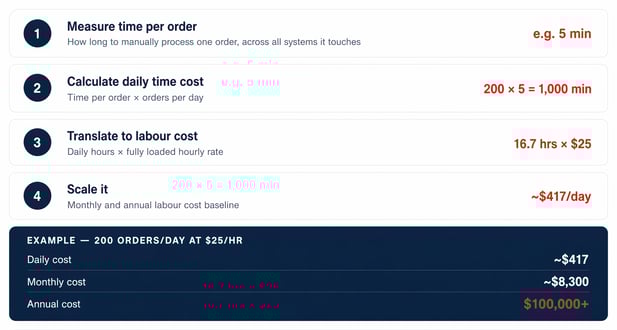
Count the time spent receiving, checking, entering and correcting orders, not just the minutes spent typing into QuickBooks. Record missed billing and rework separately so the same impact is not counted twice.
Compare those costs with software fees, setup, training and ongoing administration. A small customer base can still generate complex orders, but that alone does not make a larger platform economical.
What to Test When Evaluating QuickBooks Order Automation
Use representative customer POs in the demonstration, including one that should fail a check. Ask to follow each document through review and into the actual QuickBooks transaction.
- A normal order: Does it reach the correct customer account with the right items, quantities and prices?
- An unknown SKU: Is the mismatch visible, and can the correct mapping be reviewed before reuse?
- Missing specifications: Does the workflow hold the order, and who receives the task to resolve it?
- An incorrect price or unit: Does the system show the discrepancy and apply the agreed approval process?
- A resend or revision: Can it distinguish a duplicate from a legitimate change?
- The original PO: Can the reviewer open the source and compare it with the captured fields?
- The QuickBooks handoff: What record is created, when is it created, and how is success confirmed?
- A failed transfer: Who sees the failure, and can it be retried without creating a duplicate?
- Mixed intake methods: Can emailed, portal and employee-entered orders follow the relevant shared checks?
If an order needs approval before production, include that release step in the test. If you need batch traceability or configuration validation, evaluate those requirements explicitly rather than assuming order capture includes them.
Connect Incoming Orders with QuickBooks
OrderEase brings customer orders into a shared workflow and applies validation before data moves to connected systems. Its email automation capabilities include document capture, line-item extraction, duplicate detection and exception handling.
For a QuickBooks evaluation, bring representative POs and identify where your team currently intervenes. Confirm the account and item mappings, approval rules, supported transactions and timing of the handoff.
The goal is a process your team can account for from receipt through invoicing, with a clear route for orders that need attention.
.png?width=250&height=250&name=OrderEase%20logo%2c%20Square%20(2).png)
Talk to our team about capturing emailed customer POs, reviewing exceptions and connecting approved orders with QuickBooks Online.
Talk to Our Team
Meet the author