


<img src="https://certify.alexametrics.com/atrk.gif?account=knr3r1xk/v20jL" style="display:none" height="1" width="1" alt="">
Skip to content

QuickBooks Desktop Integrations

Connect QuickBooks Desktop to a B2B order workflow built for manufacturers, wholesalers, and distributors. OrderEase captures orders from sales reps, portals, ecommerce, and EDI workflows, then syncs the right data into QuickBooks Desktop so finance stays accurate and operations are easier to manage. 

Untitled design (32)-1
Preconfigured connections from order to ERP to fulfillment. 
Shopify - Horizontal Logo Resize
Walmart Marketplace (1)
UPS Logo - Horizontal
Rona Logo
Williams Sonoma-1-1
Costco logo
Best Buy Logo-1
Lowes Logo 500 x 150
Ace_Hardware_Logo
Shipwise logo
TractorSupplyCompanylogo
Home Depot
Amazon
Wayfair
Faire
Shopify - Horizontal Logo Resize
Walmart Marketplace (1)
UPS Logo - Horizontal
Rona Logo
Williams Sonoma-1-1
Costco logo
Best Buy Logo-1
Lowes Logo 500 x 150
Ace_Hardware_Logo
Shipwise logo
TractorSupplyCompanylogo
Home Depot
Amazon
Wayfair
Faire
Shopify - Horizontal Logo Resize
Walmart Marketplace (1)
UPS Logo - Horizontal
Rona Logo
Williams Sonoma-1-1
Costco logo
Best Buy Logo-1
Lowes Logo 500 x 150
Ace_Hardware_Logo
Shipwise logo
TractorSupplyCompanylogo
Home Depot
Amazon
Wayfair
Faire
Shopify - Horizontal Logo Resize
Walmart Marketplace (1)
UPS Logo - Horizontal
Rona Logo
Williams Sonoma-1-1
Costco logo
Best Buy Logo-1
Lowes Logo 500 x 150
Ace_Hardware_Logo
Shipwise logo
TractorSupplyCompanylogo
Home Depot
Amazon
Wayfair
Faire
Shopify - Horizontal Logo Resize
Walmart Marketplace (1)
UPS Logo - Horizontal
Rona Logo
Williams Sonoma-1-1
Costco logo
Best Buy Logo-1
Lowes Logo 500 x 150
Ace_Hardware_Logo
Shipwise logo
TractorSupplyCompanylogo
Home Depot
Amazon
Wayfair
Faire

QuickBooks Desktop Integration

How OrderEase Works with QuickBooks Desktop

QuickBooks Desktop is often the accounting core of the business. The challenge is that B2B orders do not come from one clean source or follow one simple workflow. They come from reps, customer portals, online channels, EDI trading partners, and manual processes that create re-entry, delays, and mismatches. 

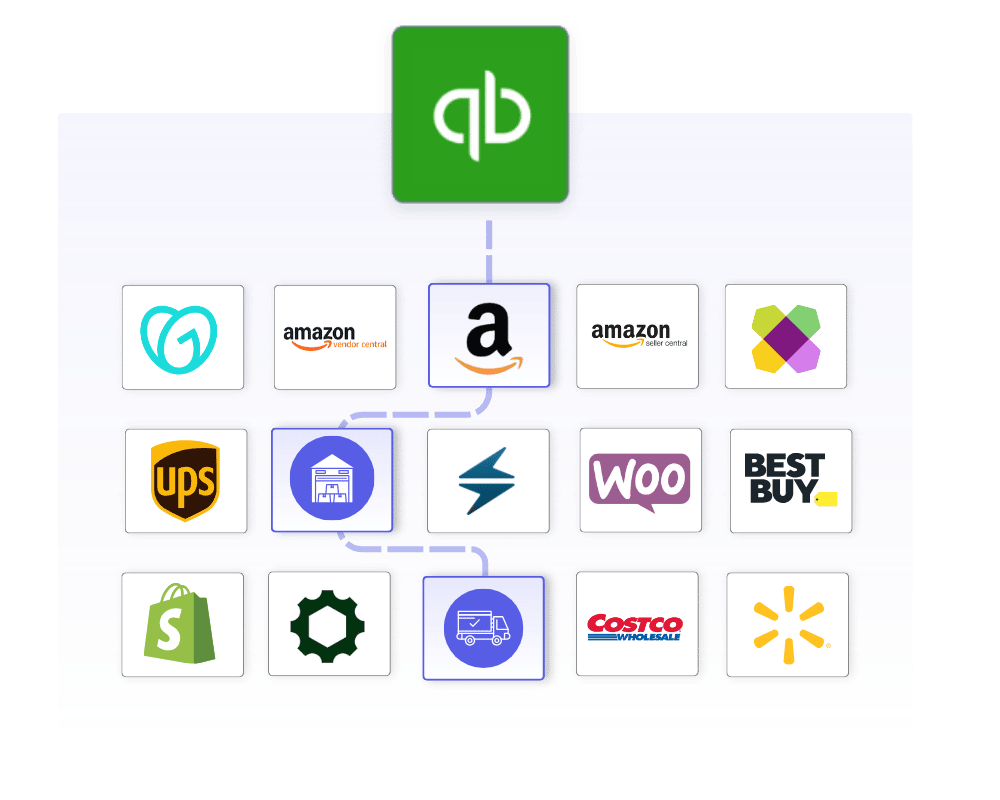
OrderEase adds the order management layer around QuickBooks Desktop. It pulls product, inventory, and customer data from QuickBooks Desktop into OrderEase, then pushes orders back into QuickBooks Desktop when they reach the status you define. That lets your team improve order intake and control without replacing the accounting workflow already in place. 


QuickBooks Desktop order management workflow-1


Plus icon to show reconfigured integration- OrderEase


Preconfigured Integrations

OrderEase offers fully supported QuickBooks Desktop integrations with standardized workflows. You get reliable order flow and tight operational control without relying on custom scripts, middleware, or expensive ERP changes.


Order Ops Workflows

Who This Integration Is For

QuickBooks Desktop integrations are most valuable for manufacturers, wholesalers, and distributors that manage orders from multiple sources with different timing, pricing rules, and operational requirements. OrderEase handles that upstream complexity so QuickBooks Desktop can stay focused on accounting, inventory, customers, and pricing records. 

This is a fit for teams that want better order control without replacing QuickBooks Desktop. OrderEase supports customer groups, catalogs, pricing levels, and ordering workflows that make B2B selling more manageable while preserving the existing accounting setup. 

Common Order Sources Supported
EDI
Ecommerce
Wholesale
Emailed POs
Operational Touchpoints
Shipping
Inventory
Warehouses
Invoicing

Integration Data Flow

QuickBooks Desktop ↔ OrderEase

Direction
Trigger
 
Frequency
Customers
QuickBooks Desktop → OrderEase
Customer created/updated
Daily scheduled + manual sync
Products
QuickBooks Desktop → OrderEase
Item created/updated
Daily scheduled + manual sync
Inventory
QuickBooks Desktop → OrderEase
Quantity change at an inventory site
Daily scheduled + manual sync
Vendors
QuickBooks Desktop → OrderEase
Vendor created/updated
Daily scheduled + manual sync
Orders
OrderEase → QuickBooks Desktop
Order reaches your configured status
Real-time push
Inbound Orders
QuickBooks Desktop → OrderEase
Sales order created in QuickBooks
Daily scheduled + manual sync
Purchase Orders
OrderEase → QuickBooks Desktop
Vendor order confirmed in OrderEase
Real-time push
Bills
OrderEase → QuickBooks Desktop
Vendor invoice created in OrderEase
Real-time push
Received Quantities
QuickBooks Desktop → OrderEase
Purchase order receipt recorded
Every 15 minutes
Shipments
Both directions
Item receipt in QuickBooks, or shipment marked shipped in OrderEase
Every 15 minutes inbound, on event outbound
Invoices
QuickBooks Desktop → OrderEase
Invoice created/updated
Every 15 minutes

Business Impact

What This Means for Your Business

Manual re-entry is where order processing slows down and errors get in. OrderEase puts a B2B order workflow in front of QuickBooks Desktop so intake, pricing, and customer-specific rules are handled before anything reaches your accounting file.

No re-entry, whatever the channel

Nobody retypes an order. Sales reps, your customer portal, ecommerce, EDI partners, and emailed POs all feed one order record, and that record posts into QuickBooks Desktop on its own.

More control without changing your accounting system

Nothing moves out of QuickBooks. Items, customers, pricing, inventory, and your accounting records stay exactly where they are, and OrderEase reads them rather than replacing them. You decide when an order posts, at Confirmed, Submitted, Shipped, or Invoiced.

Better fit for B2B selling

Your pricing rules survive contact with the order desk. Customer groups, catalogs, pricing levels, visibility rules, and minimum order settings live in OrderEase, so different buyers see different prices and different products without a workaround inside QuickBooks.

Add a channel without a QuickBooks project

Growth stops meaning new tooling. Sales orders, purchase orders, bills, and shipment tracking already move between OrderEase and QuickBooks Desktop, so adding a retailer, marketplace, or portal is configuration rather than a development project.


Featured QuickBooks Desktop Integrations

EDI DOC quickbooks-logo-e1736435247548
Automate EDI orders directly into QuickBooks Desktop
EDI - QuickBooks

Ecommerce for QuickBooks Desktop quickbooks-logo-e1736435247548
Keeps your web stores and marketplaces in sync
Ecommerce - QuickBooks
Shopify Logo QuickBooks
Sync Shopify orders with QuickBooks Desktop
Shopify - QuickBooks
WooCommerce quickbooks-logo-e1736435247548
Sync WooCommerce orders with QuickBooks Desktop
WooCommerce - QuickBooks

Costco quickbooks
Sync Costco orders with QuickBooks Desktop
Costco - QuickBooks
Amazon logo quickbooks-logo-e1736435247548
Sync Amazon orders with QuickBooks Desktop
Amazon - QuickBooks
Amazon logo quickbooks-logo-e1736435247548
Sync Amazon Seller orders into QuickBooks
Amazon Seller - QuickBooks
ShipStation (1)-1 quickbooks-logo-e1736435247548
Connect shipping activity to QuickBooks
ShipStation - QuickBooks
UPS logo quickbooks-logo-e1736435247548
Keep fulfillment connected to QuickBooks
UPS - QuickBooks

Icon to show OrderEase integration marketplace


Discover More Integrations

Explore our full integration marketplace and see how OrderEase connects your ERP to the channels, marketplaces, and systems you rely on.


QuickBooks Desktop Use Cases

Common QuickBooks Desktop Use Cases

QuickBooks Desktop works best when it receives clean, structured order data. OrderEase supports the operational scenarios that help make that possible for B2B teams. 

Sales Rep Order Capture

Give reps a structured way to submit orders through OrderEase instead of relying on manual entry into QuickBooks Desktop. Reps submit through OrderEase and the order arrives in QuickBooks without anyone retyping it.

Orders Into QuickBooks Desktop

Move approved orders from OrderEase into QuickBooks Desktop as sales orders or invoices based on the workflow your team already uses. 

Customer-Specific Pricing and Catalogs

Support B2B buying logic with customer groups, pricing levels, catalog visibility, and minimum order settings that are managed around the order workflow rather than forced into a generic model. 

Multi-Location Inventory Visibility

Use inventory sync and inventory site configuration to support businesses that need better visibility into stock across locations while keeping QuickBooks Desktop as the core inventory record. 

Integration Settings

Configured QuickBooks Desktop Sync Settings

Order Settings
Vendor Settings
Customer Settings
Product Settings
Shipping Settings

Control when orders move into QuickBooks Desktop and how they are created once they get there.

Company File Location

Point the integration at your QuickBooks company file. The agent runs on the machine where that file lives, so this is what tells it which file to read from and write to.


QuickBooks Edition

Choose whether you run the US, Canadian, or UK edition of QuickBooks Desktop. The integration adapts to the regional version, so Canadian and UK businesses connect the same way US ones do.


Push Order on Status

Choose the point at which an order moves into QuickBooks Desktop: when it is Confirmed, Submitted, Shipped, or Invoiced. Teams that hold orders back until fulfillment completes usually push on Shipped.

Missing Customer Options

Define how the integration should respond when an order references a customer that does not exist in QuickBooks Desktop.

Missing Product Options

Set the rule for what happens when an order includes a product that is not found in QuickBooks Desktop. 


Pricing Source

Use QuickBooks Desktop pricing for orders when you want order values to follow the pricing structure already maintained in QuickBooks. 


Send Quantities as Eaches

Convert order quantities into individual units when they reach QuickBooks Desktop, so pack sizes and case quantities post the way your accounting expects.


Default Account Mapping

Set default income, asset, and COGS accounts so orders created in QuickBooks Desktop follow the accounting structure your team already uses. 


Order Creation Type

Choose whether orders from OrderEase are created in QuickBooks Desktop as Sales Orders or Invoices. 


Template Name

If orders are pushed as invoices or sales orders, the template name can be copied from QuickBooks Desktop into OrderEase so document output matches your setup.


Import Orders from QuickBooks

Bring sales orders created directly in QuickBooks Desktop into OrderEase, from a start date you choose, so orders entered by your accounting team appear alongside everything else.


Create Invoices in OrderEase

Pull QuickBooks invoices into OrderEase, with line items, quantities, unit prices, and tax, so your order records carry the matching billing detail.


Control which QuickBooks vendors come into OrderEase for purchasing workflows.

Include Vendors

Name the specific QuickBooks vendors OrderEase should bring across, rather than syncing your entire vendor list.

Vendor From Date

Set the date OrderEase starts pulling vendor records from, so you are not importing years of inactive suppliers.

Control how customer data is handled before orders are pushed.

Sync Inactive Customers

Choose whether inactive customer records should also sync into OrderEase when needed. 

What Comes Across on a Customer

Customer records arrive with their main contact, billing and shipping address, payment terms, and price level. Those are managed in QuickBooks Desktop and OrderEase reads them, so there is nothing to configure.

Decide what product and inventory information should sync into OrderEase.

Sync Inactive Products

Choose whether inactive products should be included in sync behavior. 

Inventory Sites

Specify inventory sites for businesses that need visibility by location. This is especially relevant for multi-location inventory workflows. 

Product Sync Rules

Choose which QuickBooks item types come across, from Inventory Part and Inventory Assembly through Service, Non-Inventory Part, Other Charge, and Group. Only the types you select are synced.

Product Images

Product images are managed in OrderEase and uploaded there directly, rather than synced from QuickBooks Desktop. 

Product Additional Field Mappings

Map additional QuickBooks item fields into OrderEase product fields, so data your team relies on comes across without a custom build.

Define how shipment data moves back into OrderEase.

Create Shipments in OrderEase

Bring QuickBooks item receipts into OrderEase as shipments, starting from a date you choose so you are not importing shipment history you do not need.

Create Shipments in QuickBooks Desktop

Write tracking number and carrier back to the QuickBooks invoice as soon as a shipment is marked shipped in OrderEase, rather than waiting for the next scheduled sync.

Tracking and Carrier Fields

Name the two QuickBooks custom fields that should receive tracking number and carrier. These apply to the write-back into QuickBooks, so set them if you have Create Shipments in QuickBooks Desktop turned on.

Frequently Asked Questions About QuickBooks Desktop Integrations

What syncs between QuickBooks Desktop and OrderEase?

Products, inventory, customers, and vendors sync from QuickBooks Desktop to OrderEase. Orders, purchase orders, and bills move from OrderEase into QuickBooks Desktop. Received quantities, invoices, and shipment data come back the other way. The full direction and timing for each is in the data flow table above.

Can orders be pushed as sales orders or invoices?

Yes. Order settings allow you to choose whether orders from OrderEase are created in QuickBooks Desktop as sales orders or invoices. Template names can be matched from QuickBooks Desktop when this is configured.

Does QuickBooks Desktop remain the system of record?

Yes. QuickBooks Desktop stays the system of record for items, customers, pricing, inventory, and accounting. OrderEase manages catalogs, customer groups, and ordering workflow around it.

Does this support customer-specific pricing and catalogs? Yes. OrderEase supports customer groups, pricing levels, catalog visibility, and related group settings used to define buying structure for different customers.
Does this support multi-location inventory? Yes. Choose which QuickBooks inventory sites come across in Product Settings, so customers see availability for the right locations.
What do I need to set up the integration?

QuickBooks Desktop running on a Windows machine, with the OrderEase Utility installed on that same machine. The Utility connects through Intuit's QuickBooks SDK, so it has to run where the company file lives. You will also need the required .NET runtime, an internet connection, and admin access to the company file.

Setup runs in four steps. Download the OrderEase Utility, connect your company file, configure your sync settings, then activate the integration. The first time the Utility connects, someone with admin access approves it once in QuickBooks' Integrated Applications dialog. After that it runs on the schedule you set.

Does QuickBooks Desktop need to be open for the integration to run? Yes. The OrderEase Utility talks to QuickBooks through Intuit's SDK, which requires QuickBooks to be running with the company file unlocked. There is no unattended mode. Most teams run the Utility on the machine or server where QuickBooks already stays open during business hours.

Let's Discuss Your Integration Needs

Let's Discuss Your Integration Needs